How to Create Facebook Business Page and Connect it to uSpeedo.ai
1
What is Facebook Business Page
Facebook Business Page is a page specifically designed for businesses, brands, organizations, or public figures to promote their services, engage with customers, and run marketing campaigns.
- It offers more features tailored to business and marketing, such as advertising, analytics, customer messaging, and shop functionalities.
- It's public by default, allowing anyone to view, follow, and interact with the page.
- It can be managed by multiple administrators, making it suitable for teams to collaborate and manage the page.
2
Create Facebook Business Page Step By Step
2.1 Find the Page entry on the left sidebar of the Facebook homepage and click it

2.2 Click "Create new profile or Page"
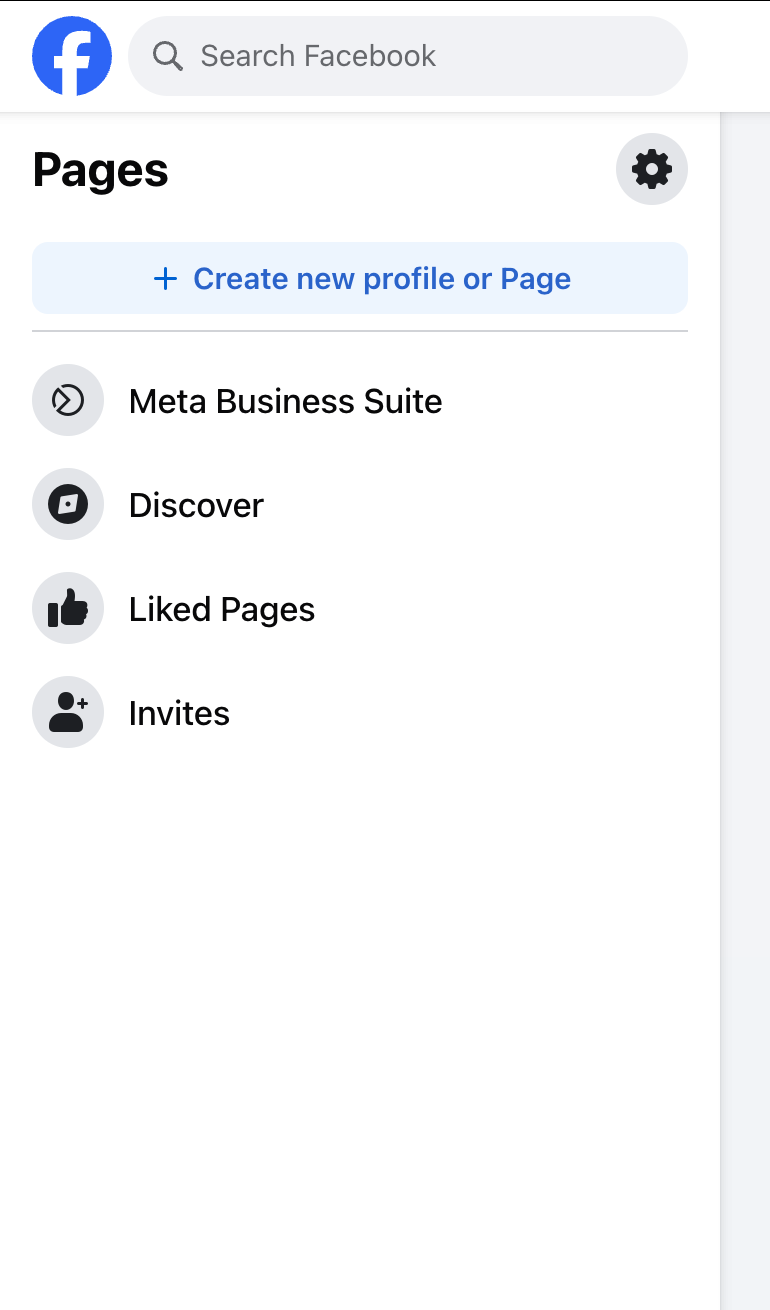
2.3 Choose "Public Page" to directly post content on uSpeedo.ai

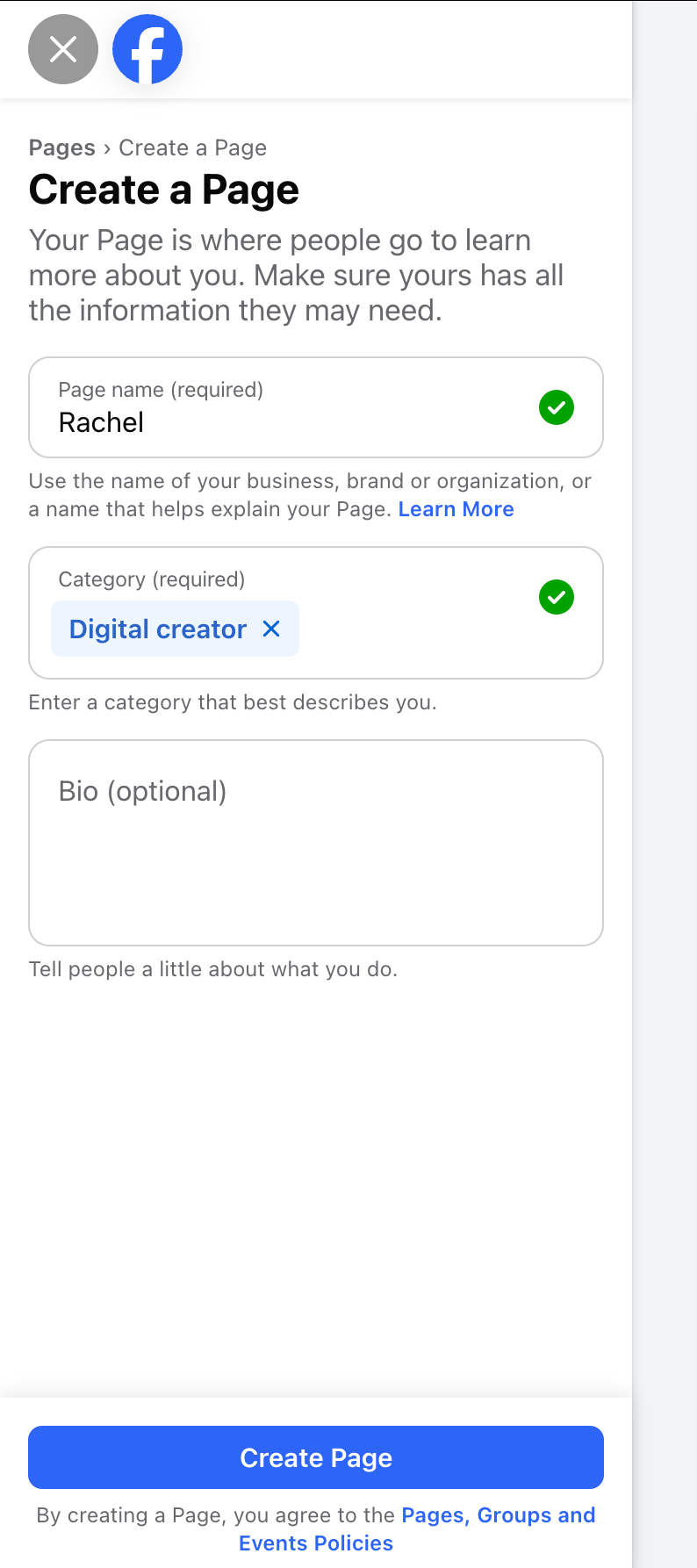
2.4 Fill in the required information for the page. The page name and category are mandatory fields. You can also add additional information to help people learn more about you.
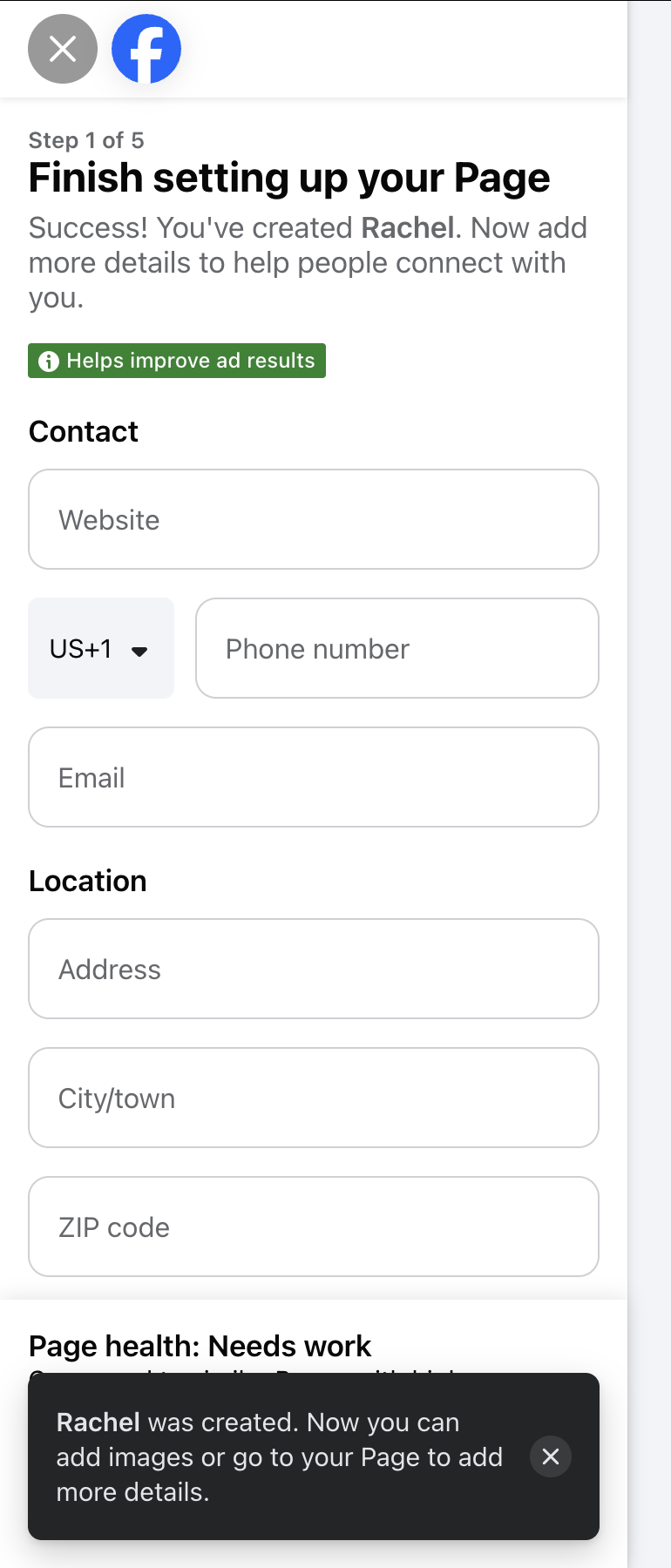
2.5 Congratulations, your page has been successfully created! You can continue to fill in additional information or return to uSpeedo.ai to link the account.
3
Connect Facebook Page to uSpeedo.ai
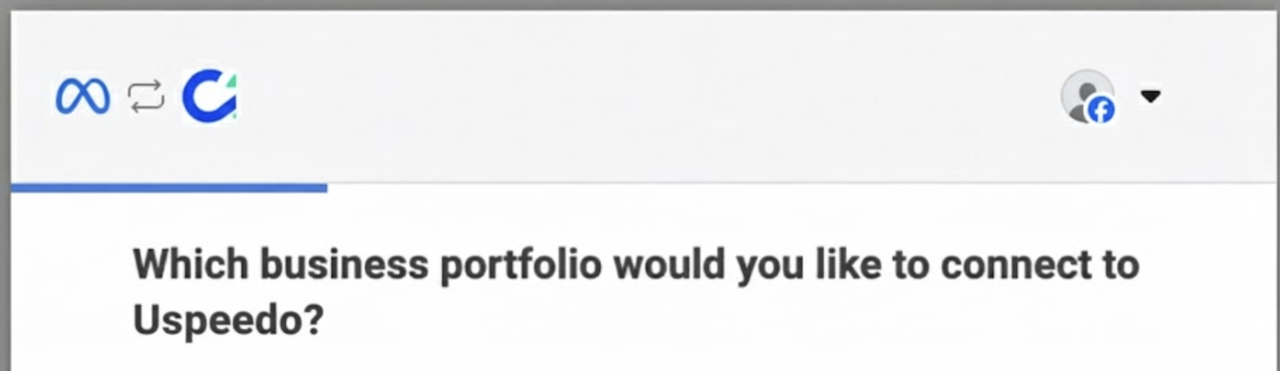
3.1 Enter your Facebook login credentials or proceed if you're already logged into Facebook. Then select which business portfolio you would like to connect to uSpeedo.
3.2 Choose Opt in to all current and future Pages when prompted to choose the pages you want to connect to uSpeedo. You will be able to limit the pages that uSpeedo has access to on the final step.
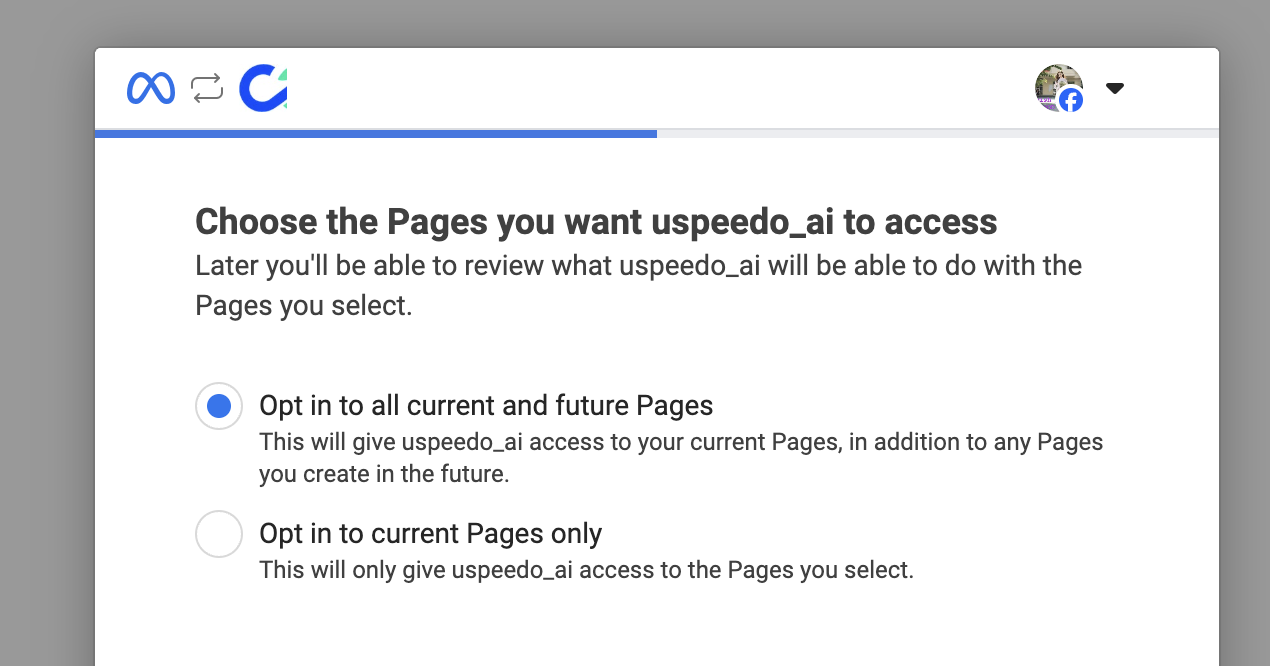
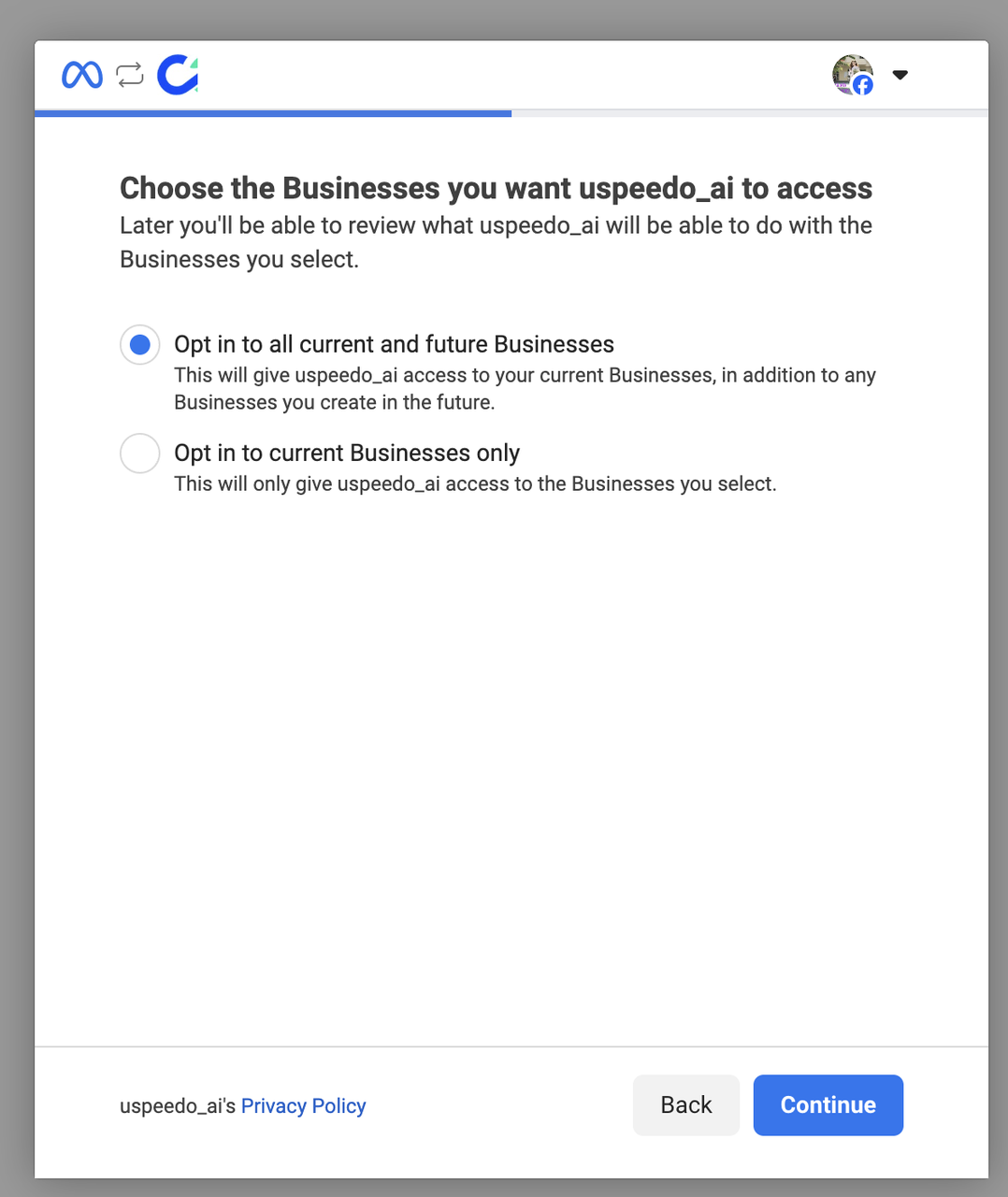
3.3 Choose Opt in to all current and future Businesses when prompted to choose the Businesses you want Blaze to access. You will be able to limit the pages that Blaze has access to on the final step.
3.4 You will then be asked to save the default permissions you are granting to uSpeedo.ai. Note that you should not change any of the default permissions. If the permissions are edited, uSpeedo.ai will not be able to work properly with your account.
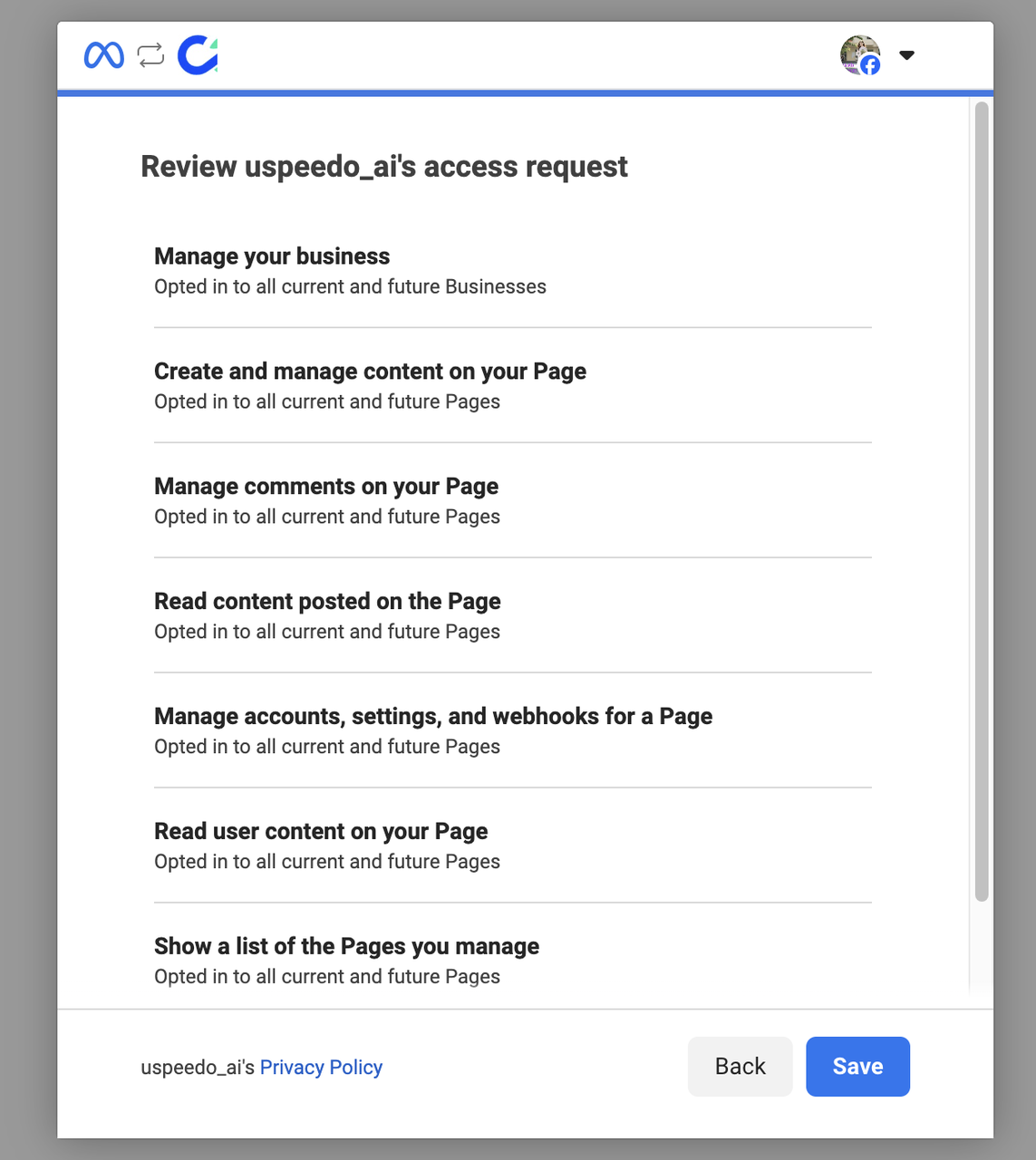
3.5 Once you click "Save", you will be routed to a confirmation window. Click "Got it" to be routed back to uSpeedo.ai. You will see your account has been successfully connected to uSpeedo.ai.
