Calendar
Plan, schedule, and visualize all your marketing activities in one place — from AI-generated posts to planned campaigns. The Calendar helps you keep your creative workflow organized and ensures your content goes live at the right time.
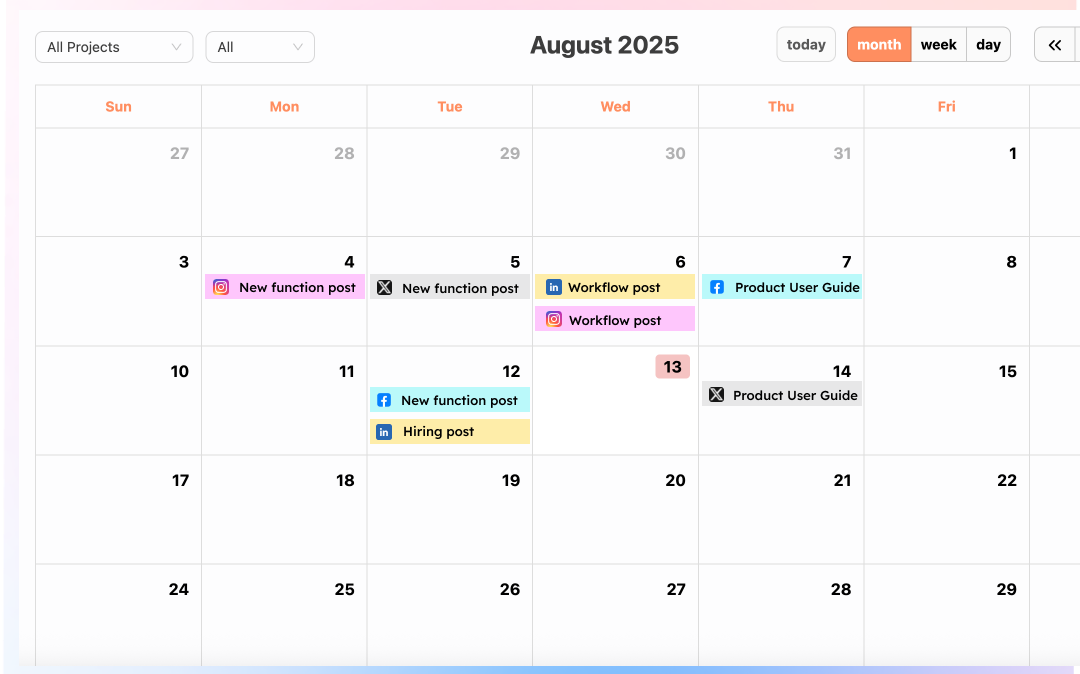
Switch between Month, Week, or Day view.
Track scheduled posts and campaigns.
Click a date to view and edit content.
How It Works
Accessing the Calendar
Go to Marketing Hub → Calendar to view all your scheduled content across platforms.
The system automatically syncs posts once they've been generated and assigned a publish time in Omni Post or AI Creative modules.
View Modes
Switch between Month, Week, or Day views to explore your timeline at different levels of detail:
• Month view gives a broad overview of all campaigns.
• Week view helps you track workload and posting frequency.
• Day view focuses on specific publish times and daily activities.
Content Display
Only posts that have been generated and scheduled will appear on the Calendar.
Each entry shows the post title, platform, and scheduled time — color-coded by channel (e.g., Facebook, Instagram, LinkedIn).
Preview and Manage
Hover over any scheduled post to preview its content or check publishing details.
Updates made from the Omni Post or My Creations section will sync automatically to the Calendar.
Tips for Use
Use the Calendar as your publishing tracker, ensuring that your generated AI content goes live consistently across all platforms.
Check at a glance whether your posting schedule aligns with key events, product launches, or trending topics discovered in Trending Topics.
Combine it with Competitor Insights to benchmark your timing and frequency against industry norms.
Tip: Think of the Calendar as your content timeline dashboard — it's where you visualize execution. Generate your posts first, schedule them, and they'll appear automatically here once confirmed.